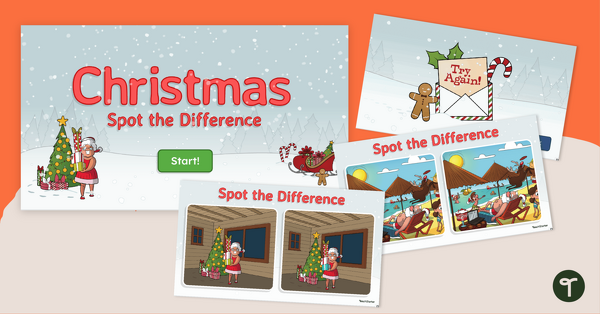
Put on your Christmas goggles and spot the difference between Christmas scenes with an exciting Spot the Difference Christmas Game!
Can You Find the Difference? Christmas Game
Christmas is coming! Celebrate Christmas in the classroom with this challenging activity that engages your students and boosts their Christmas spirit. Students will have to search closely and compare images to find the single, well-hidden difference between the two images.
No-Prep Christmas Find the Difference Game
With this engaging activity, students will be tasked with searching closely and comparing two images to find the well-hidden difference between them. Students will have to use all their observation skills and visual discrimination as they go through 10 different Christmas scenes.
This activity is a Microsoft PowerPoint or Google Slides presentation that runs in presentation mode for progression through the series of spot-the-difference tasks. Students can only advance to the next scene once they find the hidden difference between the two images.
Easily Prepare This Fun Find the Difference Activity
Use the dropdown arrow located on the Download button to choose between the Microsoft PowerPoint or Google Slides version of this resource. In order for it to work properly, this resource must be put in Presentation mode.
Note: Some differences are very subtle, so students should examine both images carefully and pay attention to every detail.
More Holiday Fun
The Christmas fun doesn’t have to stop there! Here are a few more of our favourite Christmas-themed interactive activities:
[resource:5172773] [resource:5017362] [resource:4864661]


The link doesn't appear to work.
Hi Lee-Anne! Thank you for your note. Please click the download button. Once clicked, you will be prompted to make a copy of the Google Slides file to your Drive. Once you have it, put the slides into presentation mode and it should work for you. Thanks!